
A comprehensive 3D navigation system for Unreal Engine 5, providing true volumetric pathfinding and tactical reasoning using Sparse Voxel Octrees. This plugin enables AI agents to navigate freely in 3D space with advanced pathfinding algorithms including A*, Theta*, and Lazy Theta*.
Nav3D extends Unreal Engine's navigation system to support true 3D movement, perfect for:
- Flying units (aircraft, drones, birds)
- Swimming creatures
- Zero-gravity environments
- Complex 3D level geometry
- Multi-level architectural spaces
The system implements Daniel Brewer's "3D Flight Navigation Using Sparse Voxel Octrees" from Game AI Pro 3, providing both advanced pathfinding and sophisticated tactical reasoning capabilities for AI decision-making.
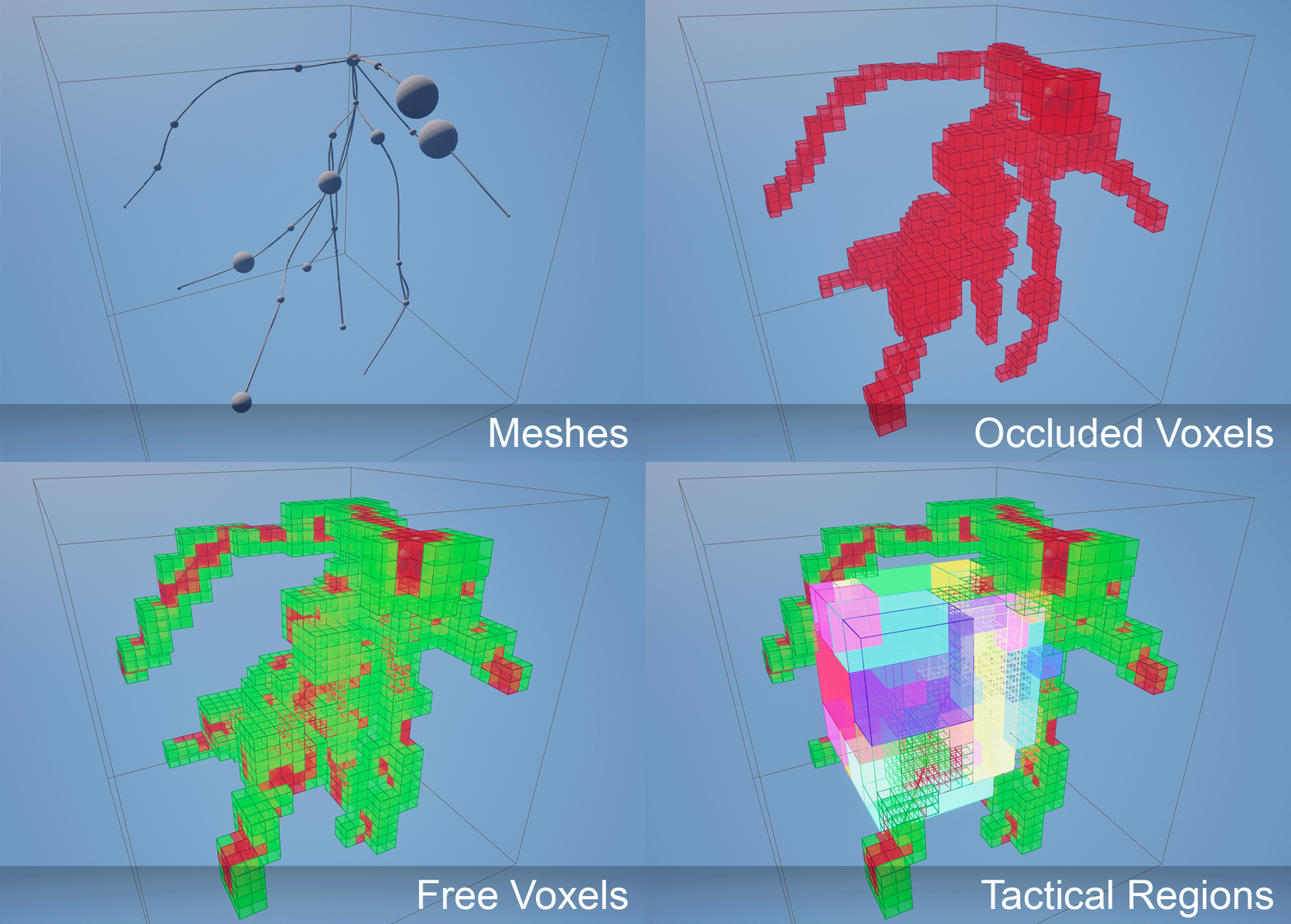
- Full volumetric pathfinding without height restrictions
- Sparse Voxel Octree (SVO) data structure for efficient 3D space representation
- Multi-scale voxel resolution based on agent size
- Considers all static meshes and instanced static meshes for navigation obstacle detection
- Region-based spatial analysis with automatic free space identification
- Visibility analysis between regions using sample-based line-of-sight testing
- Adjacency graphs for tactical movement planning
- Best position finding with configurable visibility/distance/region size preferences
- Dynamic cost calculation (Distance vs Fixed cost models)
- Multiple heuristic functions (Euclidean, Manhattan)
- Node size compensation for hierarchical optimization
- Configurable path smoothing with CatmullRom interpolation
- Drop-in replacement for standard navigation
- Works with existing MoveTo behavior tree nodes
- Automatic pathfinding query routing
- No code changes required for basic usage
- Asynchronous path generation and data building
- Multi-threaded octree traversal
- Early line-of-sight optimization
- Dynamic navigation data updates
- Intelligent volume chunking for large-scale environments
- Automatic chunk management with adjacency mapping
- Scalable architecture supporting vastly larger volumes
- Granular rebuild system for efficient updates
- World partition support allowing nav data chunks to load with your partition
Add the plugin to your project and enable it in the Plugin Manager.
Open Project Settings → Game → Navigation System:
- Expand the Supported Agents array
- Add a new agent configuration:
- Nav Data Class:
Nav3DData - Preferred Nav Data:
Nav3DData - Agent Radius: Critical setting - determines minimum voxel size (voxel = 2 × radius)
- Agent Height: Used for collision detection
- Nav Data Class:
Important: You only need one agent configuration with Nav Data Class and Preferred Nav Data set to Nav3DData. Set the Agent Radius to match your smallest agent - the system automatically routes larger agents to higher octree layers with appropriately sized voxels. For example, if your smallest pawn has radius 50, set Agent Radius to 50. Larger agents (radius 100, 200, etc.) will automatically use coarser layers for better performance while maintaining appropriate navigation granularity.
- Add Nav3D Bounds Volume: Place a
Nav3DBoundsVolumeactor in your level - Set Navigation Extents: Use the brush settings in the volume's details panel to set the extents rather than scaling the volume actor
- Configure Chunking Settings:
- Enable Automatic Volume Partitioning is configured in Project Settings → Nav3D Settings
- Max Volume Partition Size: Controls how large volumes are automatically divided (default: 250,000 units = 2.5km)
- Max Sub Volumes Per Axis: Limits subdivision density (default: 8)
- Prefer Cube Partitions: Creates cubic chunks rather than elongated ones
- Build Settings:
- Automatic Generation is configured in Edit → Editor Preferences → Level Editor - Miscellaneous
- For large 3D levels, disable automatic generation and use the Build button in the
Nav3DDataactor inspector instead
Note: The actual octree bounds may differ from your volume due to power-of-2 constraints required by the octree structure.
On your flying Character's Movement Component:
- Nav Movement → Preferred Nav Data:
Nav3DData
- Create a Navigation Query Filter Blueprint based on
Nav3DQueryFilter - Configure pathfinding options (see Query Filter Configuration)
- Set as Default Nav Filter Class in your AI Controller
Create a Blueprint from Nav3DQueryFilter to define pathfinding behavior:
- A-Star: Fastest, jaggy paths along voxel centers
- Theta-Star: Most accurate with line-of-sight shortcuts
- Lazy Theta-Star: Recommended balance of speed and quality
- Traversal Cost Calculator:
Distance: Standard distance-based costFixed: Equal cost regardless of voxel size (favors larger voxels)
- Heuristic Calculator:
Euclidean: Direct distance to goalManhattan: Taxicab geometry distance
- Heuristic Scale: Bias toward goal-oriented exploration
- Use Node Size Compensation: Makes larger voxels cheaper to traverse
- Enable Smoothing: Apply CatmullRom algorithm
- Smoothing Subdivisions: Control smoothness level
Nav3D features an intelligent automated chunking system that handles large 3D environments by dividing them into manageable pieces:
Key Benefits:
- Scalability: Support for vastly larger navigation volumes
- Build Performance: Shorter build times through parallel chunk processing
- Memory Efficiency: Each chunk manages its own serialized data
- Granular Updates: Rebuild individual chunks without affecting the entire volume
- Adjacency Optimization: Automatic inter-chunk connectivity with portal mapping
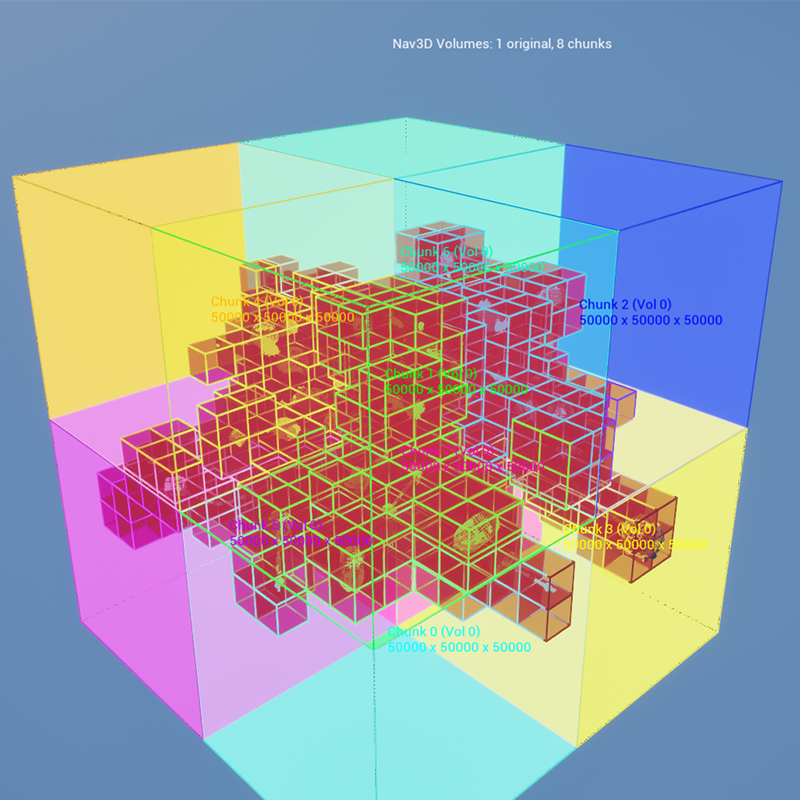
How It Works:
- Volume Analysis: The system analyzes your
Nav3DBoundsVolumebounds - Intelligent Subdivision: Automatically partitions volumes exceeding
MaxVolumePartitionSize - Chunk Actor Creation: Each partition becomes a
Nav3DDataChunkActorwith its own navigation data - Adjacency Mapping: Automatic connectivity between adjacent chunks using boundary voxel analysis
- Management Integration: The central
Nav3DDataactor coordinates all chunks seamlessly
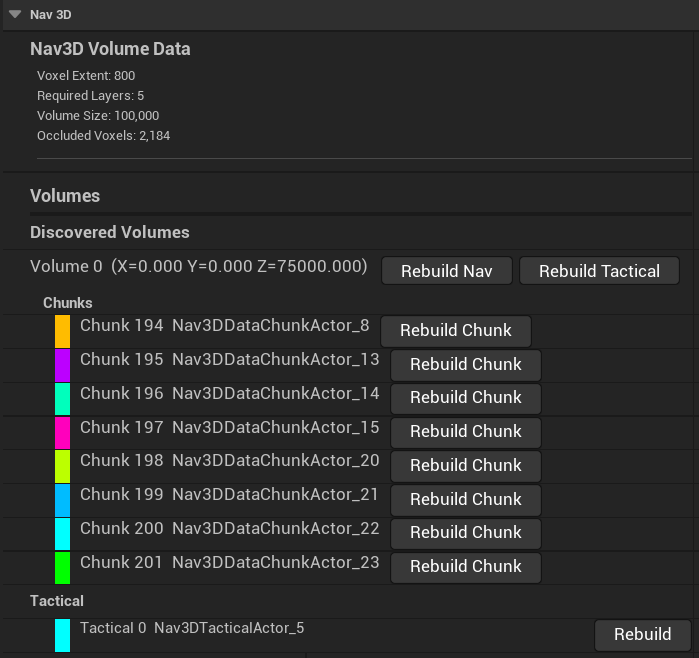
Configuration Settings (Project Settings → Nav3D Settings → Volume Partitioning):
bEnableAutomaticVolumePartitioning = true   // Enable/disable system
MaxVolumePartitionSize = 250000.0f          // 2.5km max chunk size
MaxSubVolumesPerAxis = 8                    // Prevent excessive subdivision
bPreferCubePartitions = true // Favor cubic over elongated chunksThe chunk-based architecture provides several management capabilities:
Nav3DData Actor (Main coordinator):
- Rebuild Volume: Rebuilds an entire volume, destroying and recreating all relevant chunks
- Build Status: Shows comprehensive status of all chunks and volumes
- Chunk Management: Automatic registration and coordination of all chunk actors
Individual Chunk Actors:
- Rebuild This Chunk: Button allowing developers to rebuild just a single chunk
- Build Status Indicators:
bIsBuilt,bIsBuilding,bNeedsRebuildproperties - Automatic Registration: Self-registers with the navigation system on creation
- Adjacency Data: Stores connections to neighboring chunks for seamless pathfinding
- World Partition Support: Based on
UPartitionActorfor automatic streaming load/unload
Tactical Actors (when tactical reasoning is enabled):
- Volume-Spanning Coverage: One tactical actor per volume, spanning all adjacent chunks
- Rebuild This Tactical Data: Button to rebuild tactical reasoning for the volume
- World Partition Compatible: Also based on
UPartitionActorfor streaming support - Centralized Management: Listed under "Tactical" section in Nav3DData volumes list
Debug Visualization:
- Debug Draw Chunks: Visualize chunk boundaries within your Nav3DBoundsVolume
- Chunk Information: Each chunk displays its index, parent volume, and dimensions
- Color-Coded Display: Different colors for easy chunk identification
- Adjacency Visualization: Show connections between chunks
The foundation of Nav3D is a hierarchical 3D grid system with dynamically determined layers. The system creates as many layers as needed to:
- Provide appropriately sized voxels at layer 0 to meet agent dimensions
- Fill the entire Nav3D bounds volume created by the user
- Maintain power-of-2 octree constraints
Larger volumes require more octree layers to maintain the hierarchical structure.
Layer N: Largest voxels (coarse pathfinding, covers entire volume)
Layer N-1: Medium voxels
...
Layer 1: Small voxels
Layer 0: Leaf nodes (finest detail, sized for agent radius)
Benefits:
- Memory Efficient: Only stores occupied space
- Multi-Scale: Large voxels for distance, small for precision
- Fast Queries: Logarithmic search times
- Dynamic Updates: Real-time modifications without full rebuilds
Nav3D supports seamless pathfinding across multiple navigation volumes:
- Path Sanitization: Analyzes start/end points across all volumes
- Intersection Detection: Uses ray-box intersection to find volume entry/exit points
- Segment Creation: Builds composite paths with multiple segments:
- Navigation Segments: 3D pathfinding within volumes using octree data
- Direct Movement Segments: Straight-line movement between volumes
- Automatic Point Adjustment: Finds closest valid points when start/end is outside volumes
Nav3D includes sophisticated tactical reasoning capabilities that analyze 3D space for AI decision-making. The system creates dedicated tactical actors that manage reasoning data separately from navigation chunks.
Architecture:
- Tactical Actors: One per volume, spanning all adjacent chunks within that volume
- Separate from Navigation: Tactical data is managed independently from pathfinding chunks
- World Partition Support: Tactical actors inherit from
UPartitionActorfor streaming compatibility - Volume-Based Organization: Each original volume gets its own tactical actor, regardless of chunking
Key Capabilities:
- Region Identification: Automatically converts octree voxel data into meaningful tactical regions
- Adjacency Analysis: Builds connectivity graphs between navigable regions
- Visibility Computation: Sample-based line-of-sight analysis between region pairs
- Tactical Queries: Find optimal positions based on visibility, distance, and region size criteria
- Multi-criteria Scoring: Intelligent ranking of candidate positions for tactical decisions
Management:
- Individual Rebuild: Select any tactical actor and use "Rebuild This Tactical Data" button
- Centralized Access: All tactical actors are listed under "Tactical" section in Nav3DData inspector
- Automatic Updates: Tactical data rebuilds automatically when navigation data changes (if enabled)
Blueprint Integration:
FindBestLocation(StartPosition, ObserverPositions, OutCandidates,
VisibilityPreference, DistancePreference, RegionPreference)Larger agent radius results in larger voxels and fewer voxels per volume, improving performance but reducing precision. Larger volumes require more octree layers to maintain the hierarchical structure.
The automated chunking system provides several performance advantages:
- Faster Processing: Smaller volumes build exponentially faster
- Memory Stability: Each chunk handles its own data serialization
- Selective Updates: Rebuild only affected chunks when geometry changes
- World Partition Streaming: Load and unload smaller nav chunks with world partitions
Monitor navigation memory with console command:
CountNavMem
- Viewport → Show → Navigation (checkbox)
- Select
Nav3DDataactor in World Outliner - Check Enable Drawing
Debug Draw Bounds: White wireframe showing actual octree bounds
Debug Draw Layers: Hierarchical voxel display by layer index
Debug Draw Voxels:
- Red cubes: Occluded/blocked voxels
- Green cubes: Free/navigable voxels
Debug Draw Chunks: Visualization showing chunk boundaries and information
- Colored wireframes: Each chunk gets a unique color
- Chunk labels: Display chunk index, parent volume, and dimensions
- Volume summary: Shows total original volumes vs chunked volumes
Use the Analyse feature in the Nav3DData actor inspector to:
- See how many meshes will be included in voxelization
- Understand mesh types and collision settings
- Get an indication of build complexity before processing
- View chunked volume information and expected chunk count
Nav3DData Actor Inspector:
- Build All: Rebuild all volumes and chunks
- Build Status: Comprehensive status display showing all chunks
- Volume Management: See original volumes vs chunked volumes
- Tactical Section: Access and manage all tactical actors by volume
- Analyse: Preview build complexity including chunking information
Individual Chunk Actors:
- Rebuild This Chunk: Button to rebuild only the selected chunk
- Build Status Properties: Visual indicators of chunk state
- Bounds Visualization: Shows exact chunk boundaries and center point
Tactical Actors (when tactical reasoning enabled):
- Rebuild This Tactical Data: Button to rebuild tactical reasoning for the volume
- Volume Coverage: Each tactical actor spans all chunks within its parent volume
- Centralized Access: Listed under "Tactical" section in Nav3DData volumes list
Use Nav3DPathFinderTest actors for algorithm testing:
- Place two test actors in scene
- Set one as "Other Actor" on the first
- Configure pathfinding settings
- Use test buttons:
- Clear Paths: Clear any previously rendered paths for this actor
- Find Path: Path to the Other Actor immediately. Enabled debug drawing to see the path
Enable Tactical Debug Options:
- Debug Draw Regions: Visualize identified tactical regions as colored boxes
- Debug Draw Adjacency Graph: Show connections between adjacent regions
- Debug Draw Visibility: Display line-of-sight relationships between regions
- Debug Draw Region IDs: Display region identifiers for reference
- Debug Draw Best Cover: Visualize optimal cover positions relative to observers


